Use Linear as the source of truth for delivery cycles, keep initiatives connected, and bring relevant issues into Discovery alongside calls, tickets, and notes.
Zentrik connects to Linear with OAuth. Use the connection to:
- Keep one Zentrik team’s current, recent, and upcoming cycles aligned with a Linear team through signed webhooks.
- Create one Zentrik initiative from an existing Linear initiative and keep a managed link between the two records.
- Filter Linear issues by project and date, then bring them into Discovery as ideas or insights.
Linear remains the delivery system of record. Zentrik keeps the linked initiative and imported evidence connected without copying the surrounding hierarchy.
Connect Linear
An admin adds Linear from Settings → Integrations → Linear. Zentrik requests read and write access for the authorizing Linear user.
OAuth
- Open Settings → Integrations → Linear and choose Connect Linear.
- Select the Linear organization and approve access.
- Return to the integration page and confirm the organization name.
- Open Cycles to choose the Zentrik team and Linear team before enabling webhooks.
OAuth tokens stay on the Zentrik backend and are refreshed automatically. An existing Linear API key can still run manual imports and cycle syncs, but webhook automation requires OAuth.
How to use it
Use Create from Linear when delivery planning already exists. Use Import issues when individual issues contain evidence worth synthesizing.
Create an initiative from Linear
- Open Initiatives and choose Create initiative.
- Select Linear.
- Search for and select the Linear initiative you want to bring into Zentrik.
- Review the exact name, description, status, owner, and target date that Zentrik will use.
- Review the suggested Zentrik product and features when Linear content clearly matches existing product structure. Change or clear any suggestion before continuing.
- Choose Create & link initiative.
Zentrik creates one initiative. Parent initiatives, sub-initiatives, and direct projects remain in Linear. Suggestions are advisory: change or clear them before confirming. Confirmed Product and Feature assignments stay in Zentrik and are not synchronized with Linear afterward. If the initiative is already linked, Zentrik opens the existing initiative instead of creating a duplicate.
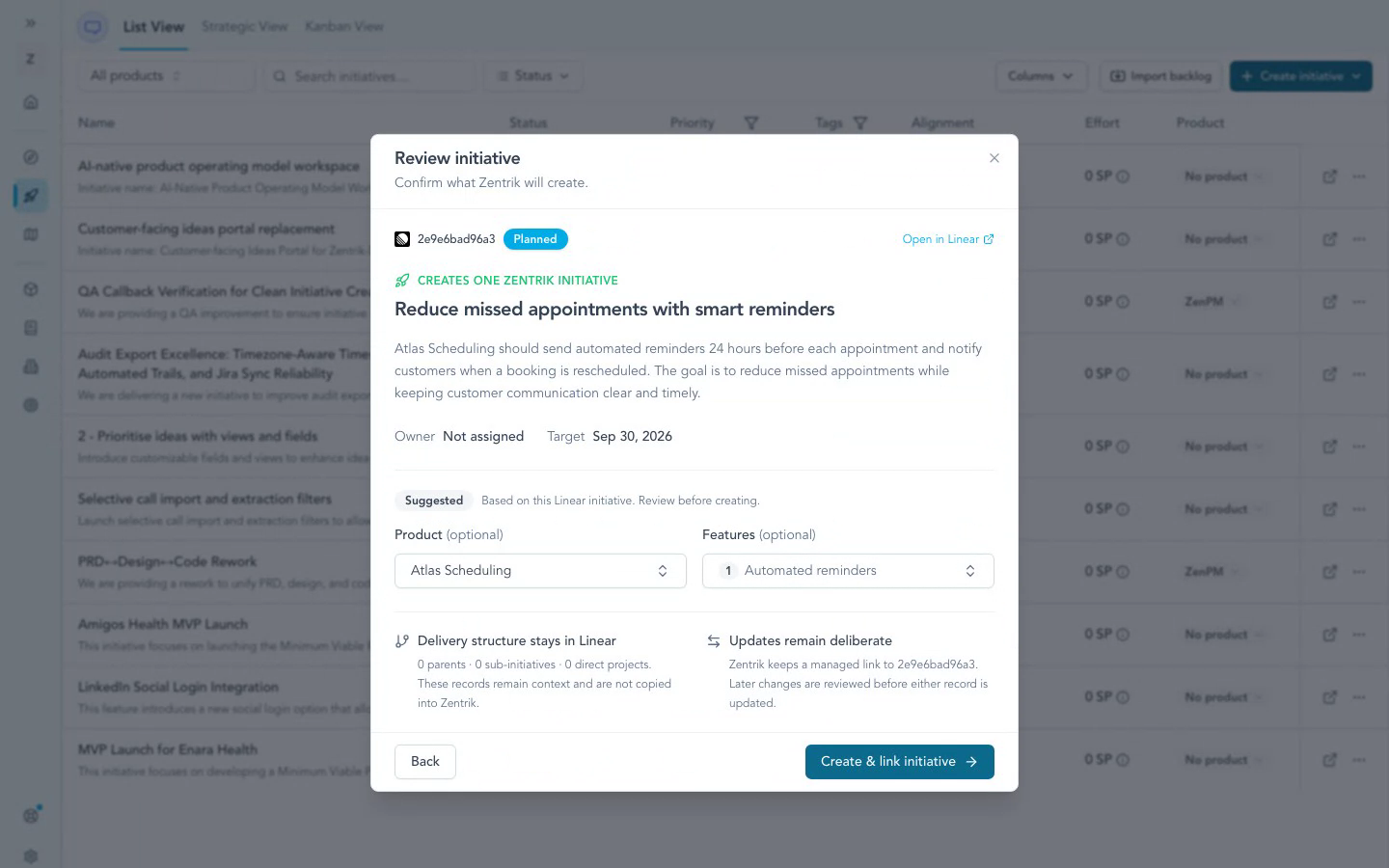
Watch the Linear initiative import walkthrough (MP4) · GIF version
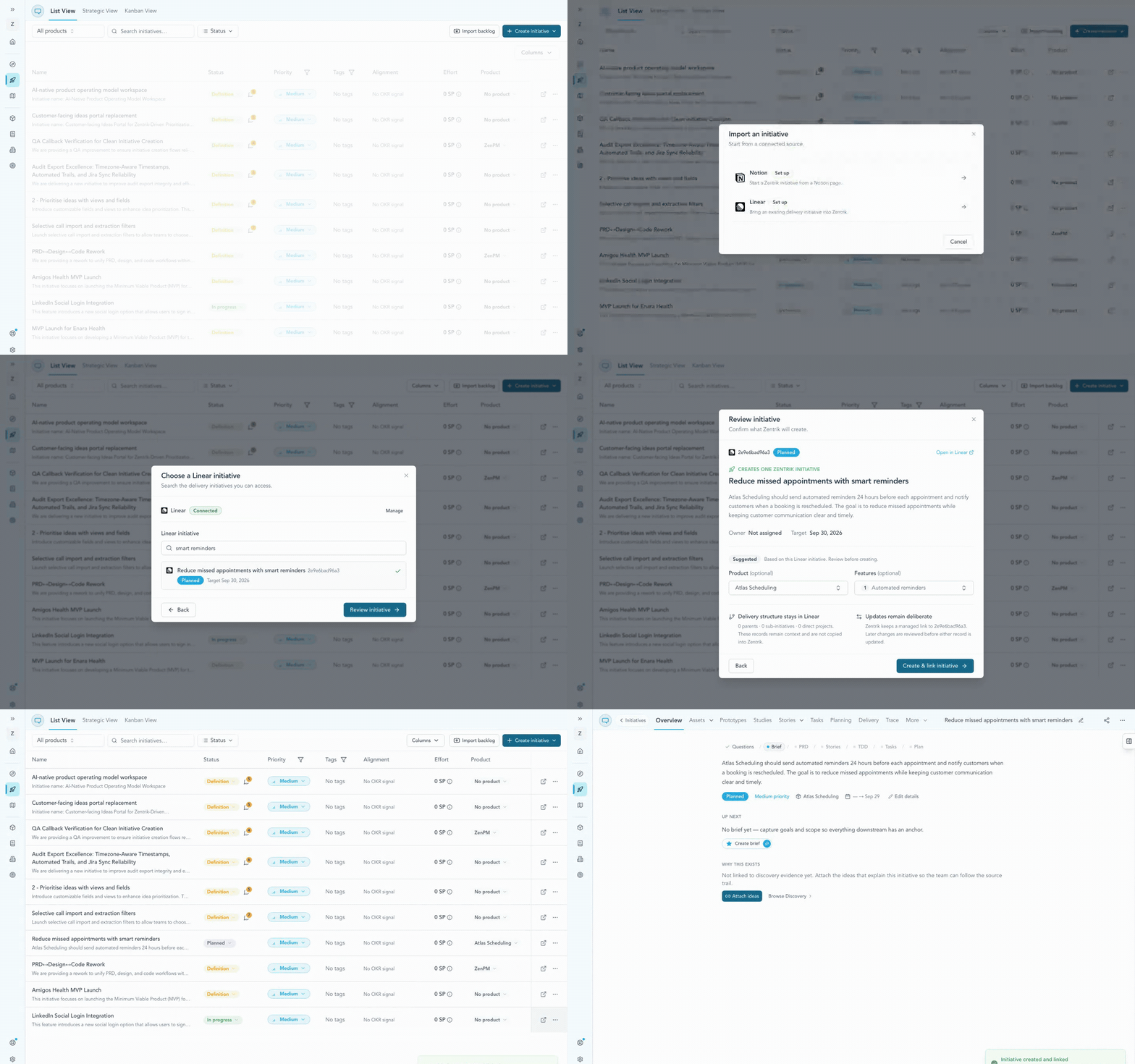
This visual walkthrough uses a synthetic pre-production workspace. The product and feature assignments are advisory until the PM confirms them.
Manage the initiative link
After creation, open Initiative connections from the Linear icon in the initiative header.
- Refresh Linear shows proposed changes before updating supported fields.
- Remote changes are reviewed before they replace Zentrik values.
- Unlinking removes the relationship; it does not delete the Linear initiative.
Import issues
- Open Discovery and choose Linear from the import source picker.
- Select one or more projects to filter the issues you want.
- Optionally add created since and updated since filters.
- Review the exact count for the current filter set before importing.
- Map Linear issue fields into Zentrik and choose whether records should become ideas or insights.
- Start the import and let Discovery refresh automatically when the background job finishes.
Projects filter the issues you can import; they do not map to Zentrik products. You can also map issue state, priority, or labels into existing Discovery taxonomy groups. If a project or issue is missing, first check the authorizing Linear user’s visibility.
Match workspace members
Workspace owners and admins can open Settings → Members → Sync with integrations and choose Linear. Zentrik proposes exact email matches first, then exact names only when the match is unambiguous. Suggestions are selected by default, and you can clear any row before saving.
This creates identity links for existing workspace members. It does not invite people or change users in Linear.
Automate Linear cycles
- Open the connected Linear integration and find Cycles.
- Choose the destination Zentrik team and source Linear team.
- Turn on Use webhooks, then save.
- Wait for the initial reconciliation to finish.
Linear becomes the source of truth for the selected cycle window and its linked issues. Change provider-owned dates, status, membership, and issue placement in Linear. Zentrik verifies signed deliveries, queues the refresh, and records the run on the integration.
Troubleshooting
Most connection problems clear up after a fresh authorization or an admin allows the app. If you have tried that and still cannot connect, contact us and we will help.
Authorization needs attention
Reconnect Linear from Settings → Integrations → Linear and approve the requested access. Cycle automation resumes after the connection is healthy.
Projects or issues are missing
Confirm the authorizing Linear user can read those projects and that your import filters are broad enough. Zentrik only shows what the OAuth grant can access.
Still stuck
Contact us and we will help troubleshoot the workspace connection with you.
Continue from here
Related guides
Did this guide answer your question?
Your response helps us prioritize missing or unclear documentation.
Still stuck?
Send your question to Zentrik support. This guide will be included automatically.