Evidence → insights
Bring customer evidence into Discovery
Choose the simplest way to bring evidence into Discovery: paste or upload it, connect a source, or send it with the API. Then review the import receipt and curate what Zentrik found.
Use this page to answer three questions:
- How should the data get here? Start with a manual import, a connector, a schedule, or the API.
- What is the data? Import raw evidence as a signal, trusted findings as insights, or requests and bets as ideas.
- What happens next? Follow the import result or receipt to the records Zentrik created, then link the useful evidence to the work it informs.
This page covers Discovery evidence. For PRDs, decision logs, and other product knowledge, use Workspace context instead.

Paste and files are one way in; connected tools use the same signal → insight pipeline after you pick records.
Choose a path
The source and the job you need to do determine the shortest path.
Try one record first
For a first test, open Discovery → New → Bring in data → Paste text. Import one real call note, ticket, review, or research excerpt and inspect the resulting signal and proposed insights.
This gives you a baseline before you configure a connector or automate a source.
Paste or upload
Use manual import when the source is already in front of you or you are testing a small batch.
- Paste text for notes, transcripts, tickets, reviews, survey responses, or reports.
- Upload evidence for CSV/XLSX rows, or DOCX/PDF/text as one source.
- Upload transcript files to create one signal per call or meeting file.
- Upload a CSV as insights or ideas when each row is already a curated finding or product request.
Where the flow offers it, add product and account context before importing. Keep the original source link when one exists so the record remains easy to verify.
Connect a source
Use a connector when the evidence already lives in a supported system. Connect it under Settings → Integrations, then choose the records to import from Discovery.
| Source | Imports | Creates |
|---|---|---|
| Zoom, Microsoft Teams, Gong, Fireflies, Granola, Fathom | Calls, meeting transcripts, or notes | Signals |
| Zendesk | Support tickets and customer issues | Signals |
| Pendo | NPS responses, comments, and account context | NPS records; optional signals from useful comments |
| Jira, Linear, Aha! | Issues, requests, and product ideas | Signals, insights, or ideas, depending on the source and mapping |
| Salesforce | Cases, opportunities, and accounts | Signals, insights, or ideas |
| Airtable | Requirements, roadmaps, and tracked records | Signals or ideas |
Other evidence paths are available through Slack thread capture and workspace email intake. Each source guide explains its permissions, filters, and mapping rules.
Automate imports
Use automation when the same source needs to arrive repeatedly or Zentrik does not have a connector for it.
- Signals API quickstart: send one record and confirm the contract.
- Signals import template: batch records with retries, polling, dry runs, and source mapping.
- Signals API reference: inspect the request and response fields.
Some connectors support admin-managed schedules with source-specific filters. Examples include Fireflies, Granola, Zendesk, Pendo, and workspace email; check each guide and its integration settings because cadence and scope vary by source. For API imports, keep a stable externalId, source date, product or account identifiers, and a reviewer-facing sourceLinks URL when available.
If a source is not listed and you prefer a native connection, contact us. If you already control its API or export, the technical guides can get it into the same Discovery pipeline.
Choose what to create
Choose the record type that matches the material, not the system it came from.
- Signal: raw evidence Zentrik should read, such as a transcript, ticket, review, survey response, or note. This is the default when you are unsure.
- Insight: a finding your team has already written or approved and wants to organize or link.
- Idea: a request, solution bet, feature, backlog candidate, or roadmap item the team may build.
Raw evidence should usually enter as a signal because it keeps the original text and source context available while Zentrik proposes insights. Use idea when the item is already framed as a possible product change.
After import
For records imported into Discovery, every path converges in the same review workflow. Use the receipt or source-specific import result to move from ingestion to review, then curate the records before they shape product work.
What Zentrik does
For signal imports, Zentrik stores the source text as a signal, processes it, and proposes source-backed insights. Insight and idea imports create the chosen record directly. Pendo NPS history remains account context; useful comments can become signals. Source links and imported metadata stay with the record when the source provides them. Longer runs can continue in the background after the dialog closes.
For raw evidence, the same signal → insight path is used for pasted text, files, connectors, and API imports. Results vary with the source: a rich customer conversation may produce several candidates; a short note may produce one or none.

Processing often runs asynchronously. Check status on the signal until candidates and links are ready.
Review the receipt
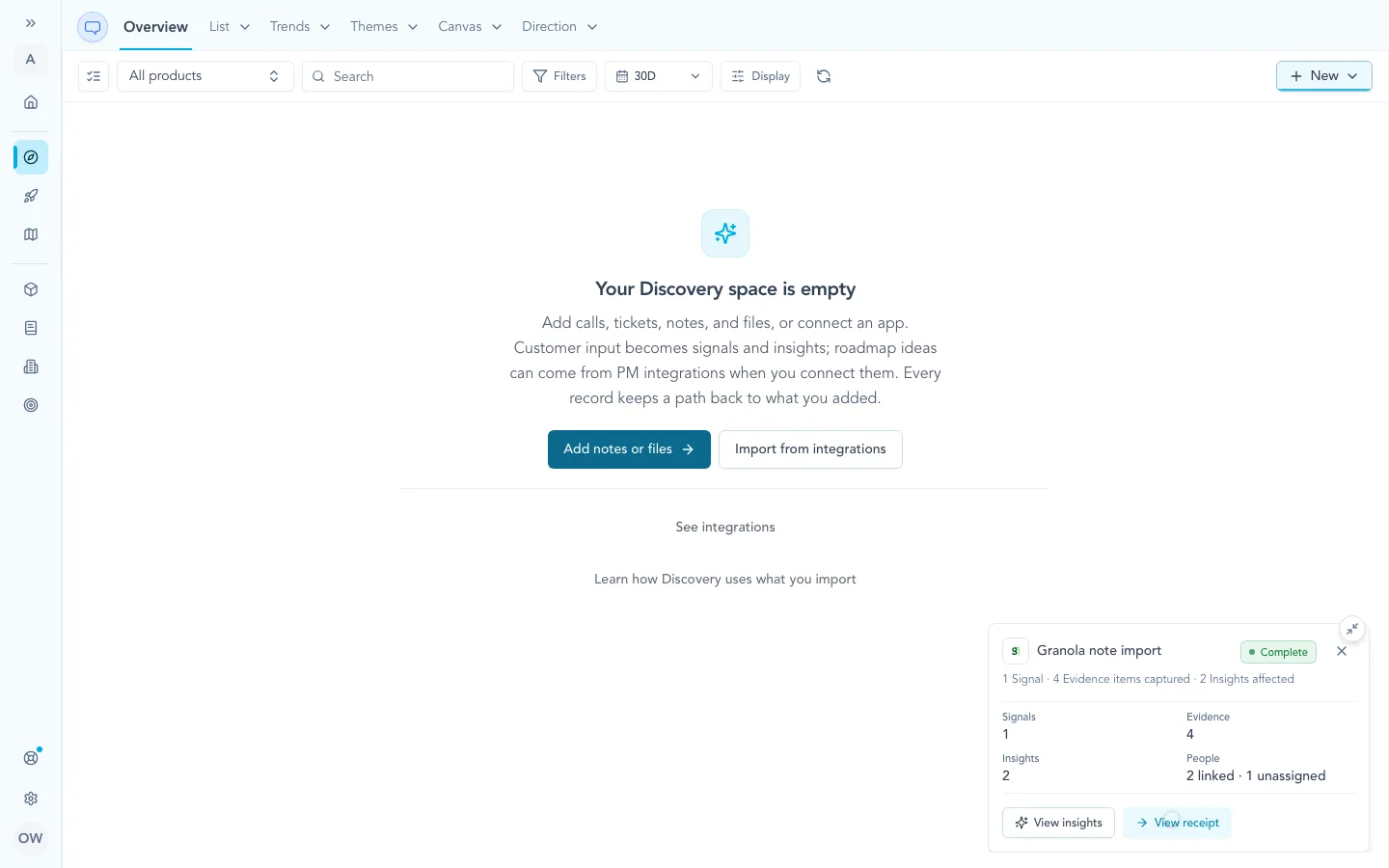
When a Discovery run shows a background receipt, it reports what the run reviewed, what it created, and what needs attention. Use its links to open the right destination:
- Signals for source-backed evidence and its original context.
- Insights for the learnings extracted from signals.
- Ideas for imported requests, bets, or roadmap candidates.
Open the signal when you need to verify the text that arrived. For Pendo, use the integration result to distinguish NPS records from comment signals. If processing fails or the result looks thin, check the source body and status before retrying.

Insights stay linked to signals so new quotes attach to the same learning as you merge and edit.
Continue the work
Curate the result by editing, merging, splitting, or linking it to existing evidence. Then move from evidence to action with Insights → opportunities and From customer evidence to initiatives.
For rollups and stable labels, use Taxonomy & themes. Keep PRDs, decision logs, and other living product documents in Workspace context.
For workspace admins
- Paste and uploads use the content the user selects. Connector credentials are managed under Settings → Integrations.
- Connected imports are normally user-selected. Where supported, admins can configure a schedule, source filters, destination, or mapping on the integration page.
- Access and scope vary by provider. The connector guide is the source of truth for permissions and what Zentrik can see.
- For signal imports, processing is server-side. Receipts, signal status, and item-level errors keep a run reviewable after it starts; other connectors expose their own import result.
Troubleshooting
Check these steps against what you see in your workspace. If something differs, note your workspace name and the screen, then contact us.
Should we use manual import, a connector, or the API?
Use manual import for a first run or a small batch. Use a connector when the source is supported. Use the API when the source is custom or the import needs repeatable automation.
Processing seems stuck
Open the signal, source report, or background receipt and check its status and error. Large inputs can take longer. If the status never completes, contact us with the workspace and source.
A signal is missing context or insights
Confirm that the imported body contains the full transcript, ticket, or feedback text rather than metadata alone. Add product or account context and a source link when available. For very large files, split the input and retry.
Continue from here
Related guides
Did this guide answer your question?
Your response helps us prioritize missing or unclear documentation.
Still stuck?
Send your question to Zentrik support. This guide will be included automatically.