Import a transcript, note, document, or spreadsheet into Discovery and check the result.
Paste or upload
Use manual import when the evidence is already on your computer or you are testing a small batch.
In Discovery, select New → Bring in evidence…. The quickest start is the first line, Paste or drop anything: paste text or drop files anywhere on that screen and Zentrik works out what they are. Or choose what you have, and that choice shows its connected tools next to its paste and upload options. The Into control beside each step's action sets the product the import lands in, for every step.
Upload a file
| You have | Choose | Creates |
|---|---|---|
| Call or meeting transcript files | Calls and meetings → Upload transcript files | One Signal per file |
| A helpdesk, survey, or review export | Support and requests → Upload an export | Signals |
| Reports, research notes, or analyst documents | Research you’ve done → Upload documents | Signals |
| A sheet of findings your team already has | Research you’ve done → Upload a findings sheet | Signals, one per finding |
| A sheet of requests or roadmap candidates | Ideas you already track → Upload a requests sheet | Ideas |
Sheets need no template. Zentrik reads your file and says how it read it in one sentence, such as "Each row is a support ticket. The words are in Subject + Description, the customer is in Organization and it’s dated by Created." Change any part of that sentence and the first rows update as you do. Priority words such as P1, Critical, or Nice to have are understood. Save Excel requests sheets as CSV first.
Anything that needs a decision sits on its own line under the sample rows:
- Customer names that are not accounts in your workspace import without an account, unless you choose to skip those rows or match them by hand.
- Product names that do not match a product need matching before the import.
- Rows without words are skipped, and rows imported before are not duplicated.
A document, or a sheet you would rather keep together, becomes one signal for the whole file. More options holds every column setting, such as ticket keys, extra fields, and a fallback account.
Zentrik links rows to existing workspace accounts; it does not create accounts during an import. Imported signals retain source details such as the filename, sheet or row, dates, and URLs.
Paste text
Every choice has a paste option for one note, transcript, ticket, review, survey response, or report. When pasted text reads like a transcript or a support ticket, Zentrik says so and offers to switch the type. It never switches on its own, and you can undo a switch. Add the customer and date from the bar under the text.
Limits
Files can be up to 50 MB each. A batch can include up to 100 files, and a Rows import can create up to 500 signals.
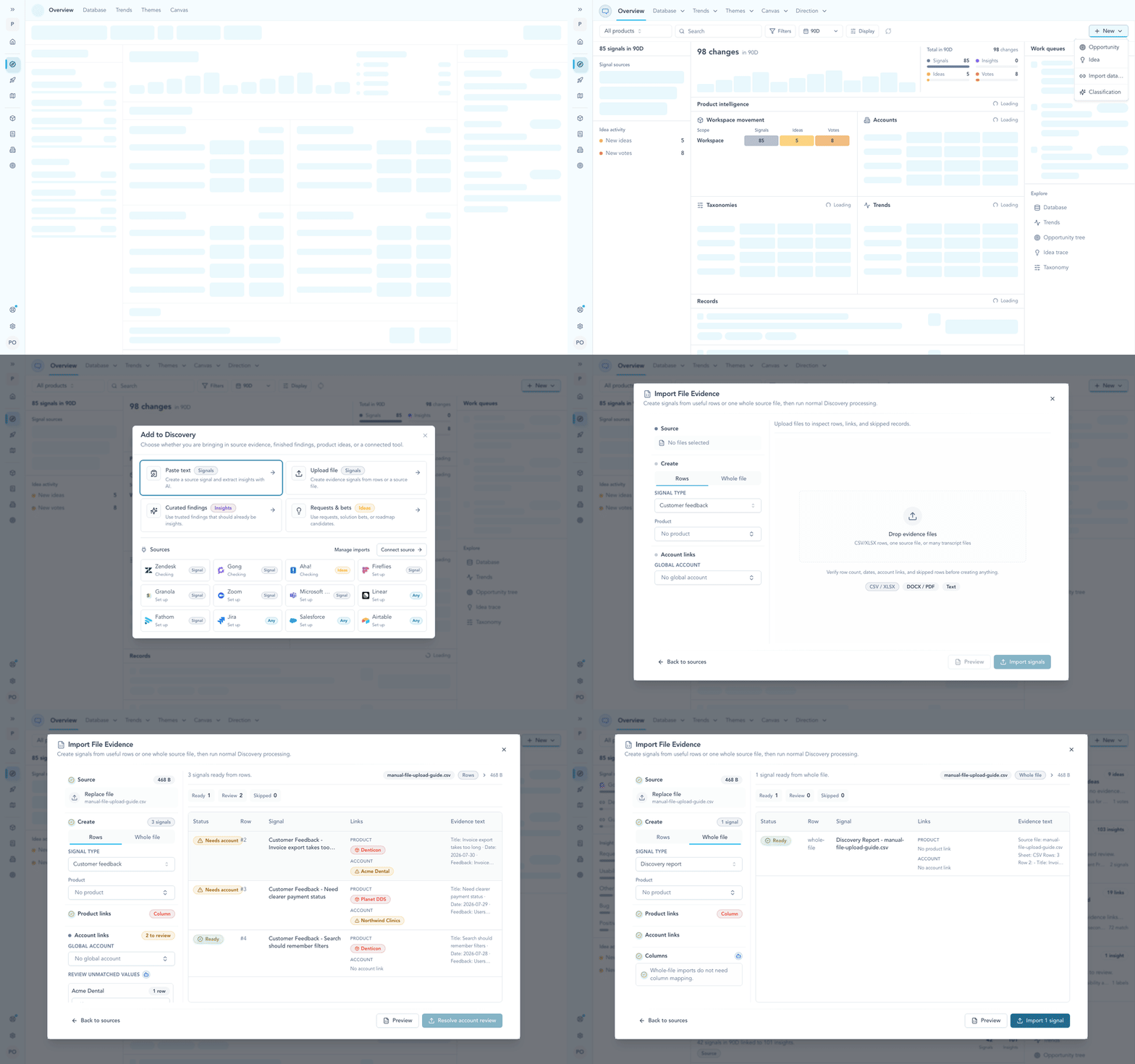
Watch the path from New to the preview: Rows creates one signal per row, while Whole file creates one signal without column mapping.
Check the result
After importing, open the source Signal and check the text, product, account, and processing status. Review the extracted evidence before using it to shape work. If processing fails, inspect the error before retrying.
Continue from here
Related guides
Did this guide answer your question?
Your response helps us prioritize missing or unclear documentation.
Still stuck?
Send your question to Zentrik support. This guide will be included automatically.