Bring Gong call transcripts into Discovery as source-backed evidence for product decisions.
An owner or admin connects Gong for the workspace. Users with import access can review and import calls available to that connection without connecting Gong themselves.
Connect Gong
Open Settings → Integrations → Gong and choose OAuth or API key. Existing access-key connections keep working without changes. OAuth appears when it is enabled for your Zentrik environment.
Both methods read calls and transcripts into Zentrik. Zentrik does not write to Gong. Switching methods updates the same connection and keeps its saved imports and history.
Connection and saved imports
These work together but have different responsibilities:
- The Gong connection stores the workspace credentials and an optional account-matching policy shared by every Gong import.
- A saved import stores a named call boundary, optional Gong tracker, eligible products, title-routing phrases, exclusions, first-run lookback, schedule, cursor, and run history.
Manage saved imports in Settings → Integrations → Imports. Disconnecting Gong leaves their history intact but prevents another run until the connection is restored.
Connection-level Account matching is optional. When enabled, Zentrik checks the company domains of Gong participants marked external against existing Account domains and websites. Public email domains are ignored. Configured title patterns provide another deterministic match: the first capture group becomes the observed Account name. Leave title patterns empty to use participant domains only. Ambiguous or unknown identities stay unlinked, and this connection-level routing does not create Accounts. Product-routing phrases belong to the saved import, not to this Account policy.
Resolved accounts are linked to the imported signal and to the insights produced from it, so account filters and evidence trails stay consistent. Calls with participants from more than one unambiguous existing account can retain all of those links.
For calls that do not match an explicit title phrase, choose one fallback:
- Import and classify insights imports every unmatched call and uses the normal transcript analysis that creates Discovery insights.
- Check transcript before importing explicitly opts the saved import into an additional LLM relevance check. Clearly unrelated calls are skipped; relevant calls are constrained to the eligible products. If Gong has not made a transcript available yet, the call is retained so evidence is not silently lost.
- Do not import ignores unmatched calls without reading their transcripts.
The relevance check is off unless an admin chooses it. A recent-call preview shows which calls are immediately included, skipped, or waiting for that check.
You can also keep only calls where Gong found any selected tracker. Select multiple trackers when several conversation signals should qualify; a call is included when at least one selection matches. Zentrik applies this boundary after retrieving the call window because Gong's call-list API does not accept a tracker filter. Add tracker details to imported signals is a separate opt-in: leave it off to use the trackers only as an intake boundary, or turn it on to add every matching selected tracker's name, mention count, and matched phrases to the signal context used during analysis.
The tracker selector loads keyword trackers from Gong settings. Smart trackers are added when Gong reports them on calls in the saved-import preview window. A call matches only when Gong reports a positive tracker mention or phrase occurrence; zero-count tracker rows do not match. For a keyword tracker to match imported calls, enable API request results for that tracker in Gong.
Test draft is a read-only safety check. It evaluates the saved first-run window and deterministic routing without creating signals, running the optional transcript-relevance check, or moving the live cursor. Its durable receipt separates calls ready from saved rules from calls that need a transcript check during a live import.
OAuth
- Choose OAuth, then Connect to Gong.
- Sign in to Gong as a tech admin and approve access to calls, transcripts, call details, and tracker settings.
- Return to Zentrik and open a Gong import to review available calls.
Zentrik stores the tokens on the server and refreshes them automatically. To switch an existing connection, open its settings and choose OAuth. If you cancel authorization, the existing connection keeps working.
Disconnecting in Zentrik stops future imports and keeps previously imported signals and import history. Revoke Zentrik in Gong as well to withdraw its authorization there.
Access key & secret
- In Gong, follow the API access guide to obtain an Access Key and Access Key Secret.
- Generate a key pair with permission to read calls and transcripts you need.
- In Zentrik → Settings → Integrations → Gong, enter both values and save.
- Test the connection or open a Gong import in Discovery.
Zentrik does not show either value again after save.
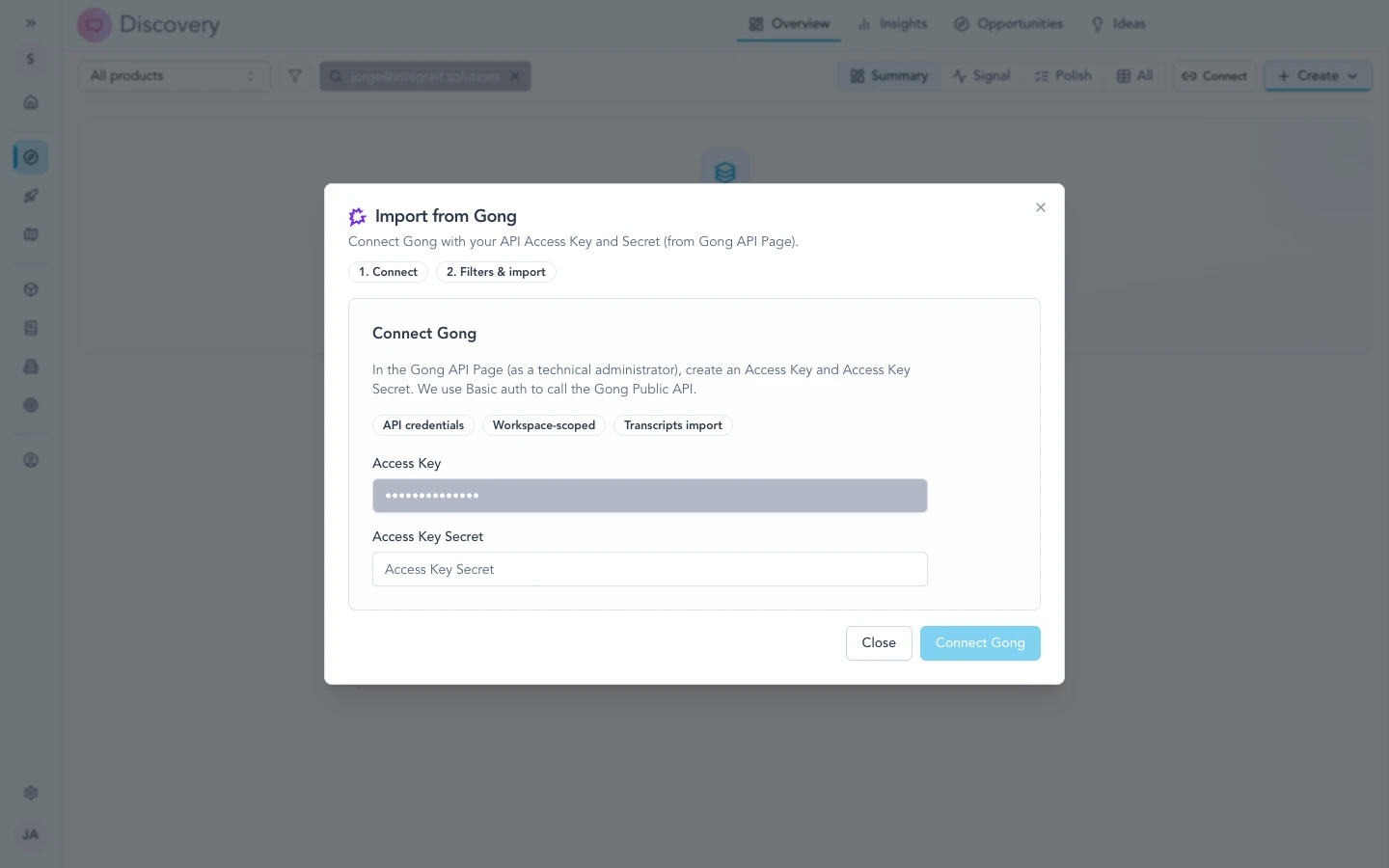
Once workspace credentials are saved in Settings, Discovery can reach Gong when you start a Gong import.
How to use it
Open Discovery and choose Gong from the transcript or signal import options. The call list reflects what the connected Gong account can see, subject to Gong’s retention and sharing rules.
Import calls
- Start a Gong import from Discovery.
- Search or filter to the conversation you need.
- Review the transcript preview and speaker attribution.
- Choose whether to save reliably external attendees as People and, separately, whether their professional domains may create missing Accounts.
- Choose Import N calls.
The imported call keeps the speaker context needed to trace later insights back to the conversation. Manual and saved imports can optionally filter the reviewed calls to those containing a selected Gong tracker. Adding that tracker's details to signal analysis is a separate choice. Saved imports can also apply deterministic title phrases, exclusions, and an optional transcript-relevance check before an unmatched call enters Discovery.
Audience boundaries
You can optionally require at least one confirmed external participant. External means outside your Gong workspace, not necessarily a customer. A partially resolved call passes when one external participant is confirmed; unknown affiliation is never treated as external.
The audience rule is applied together with the other saved-import rules. All calls keeps calls with unknown affiliation eligible, while the external-only boundary holds them out. In the Signals table, Audience selections include External participant present, Internal participants only, and Audience unknown. Multiple Audience selections are combined with OR; Audience is combined with other table filters using AND.
Zentrik does not infer customer identity from affiliation alone or apply percentage thresholds. Gong's external affiliation plus a valid email can organize a Person when that option is enabled. Connection-level Account routing still accepts only an unambiguous existing-Account match from an external participant's company domain or a configured title capture. New Account creation occurs only through the separate import choice.
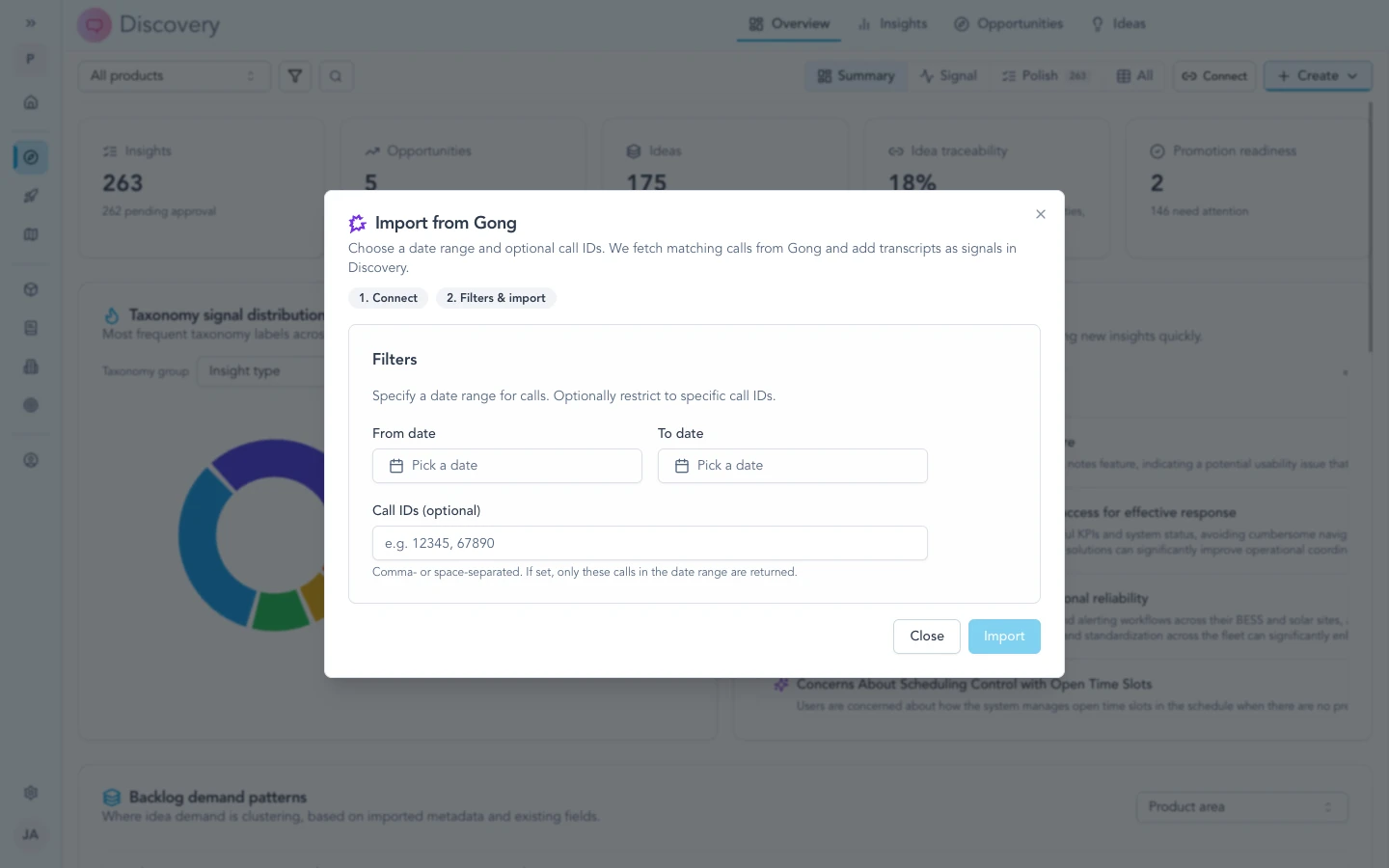
Gong affiliation, audience, and tracker boundaries stay visible beside the separate choices for People and missing Accounts.
Troubleshooting
Most connection problems clear up after a fresh authorization or an admin allows the app. If you have tried that and still cannot connect, contact us and we will help.
Credentials not working
For OAuth, reconnect and approve all requested permissions. For API keys, create a new Gong access-key pair, paste both values into Settings → Integrations → Gong, and save.
Call not listed
Confirm the call is visible in Gong for the same workspace the connection represents. If it is missing in Gong too, your Gong admin can help with sharing or retention.
Still failing
Contact us with your workspace name, the call date or title, and the step that failed. Do not include credentials or transcript text.
Continue from here
Related guides
Did this guide answer your question?
Your response helps us prioritize missing or unclear documentation.
Still stuck?
Send your question to Zentrik support. This guide will be included automatically.