A team groups the people who work together and controls access to their initiatives, studies, Huddles, cycles, and tasks.
A workspace holds your organization’s members, subscription, and integrations. A team organizes people and work within it. Every workspace starts with a default team.
Set up a team
Open Settings → People, then choose Teams.
- Choose Add team at the end of the team rail.
- Give the team a recognizable name and a short purpose.
- Select the team, then choose Add members.
- Choose existing workspace members or Invite new people. If everyone is already on the team, the invitation form opens directly.
- Assign Admin, Editor, or Viewer for this team.
You can invite several new people together when they need the same access. The invitation summary shows the workspace and team roles before anything is sent. For the complete first-batch invitation flow and pending states, see Invite people and manage access.
Manage membership
In Settings → People → Teams, select a team in the rail. Use Team actions to edit its name and purpose, switch to it, or delete it when permitted.
Workspace Owners and Admins can add or remove members and change their roles. A Team Admin can edit the team’s details, but needs workspace administration access to change membership.
- Select the Also in count to check a member’s other teams and roles.
- Select member rows to change roles, add teams, or remove memberships in a batch. Members whose only team is this one are kept.
- Use Edit teams on one person to change all their team assignments together.
- Use the Members tab to change workspace roles.
Need an owner who cannot sign in? Create a service member. For a reorganization, follow Move work between teams.
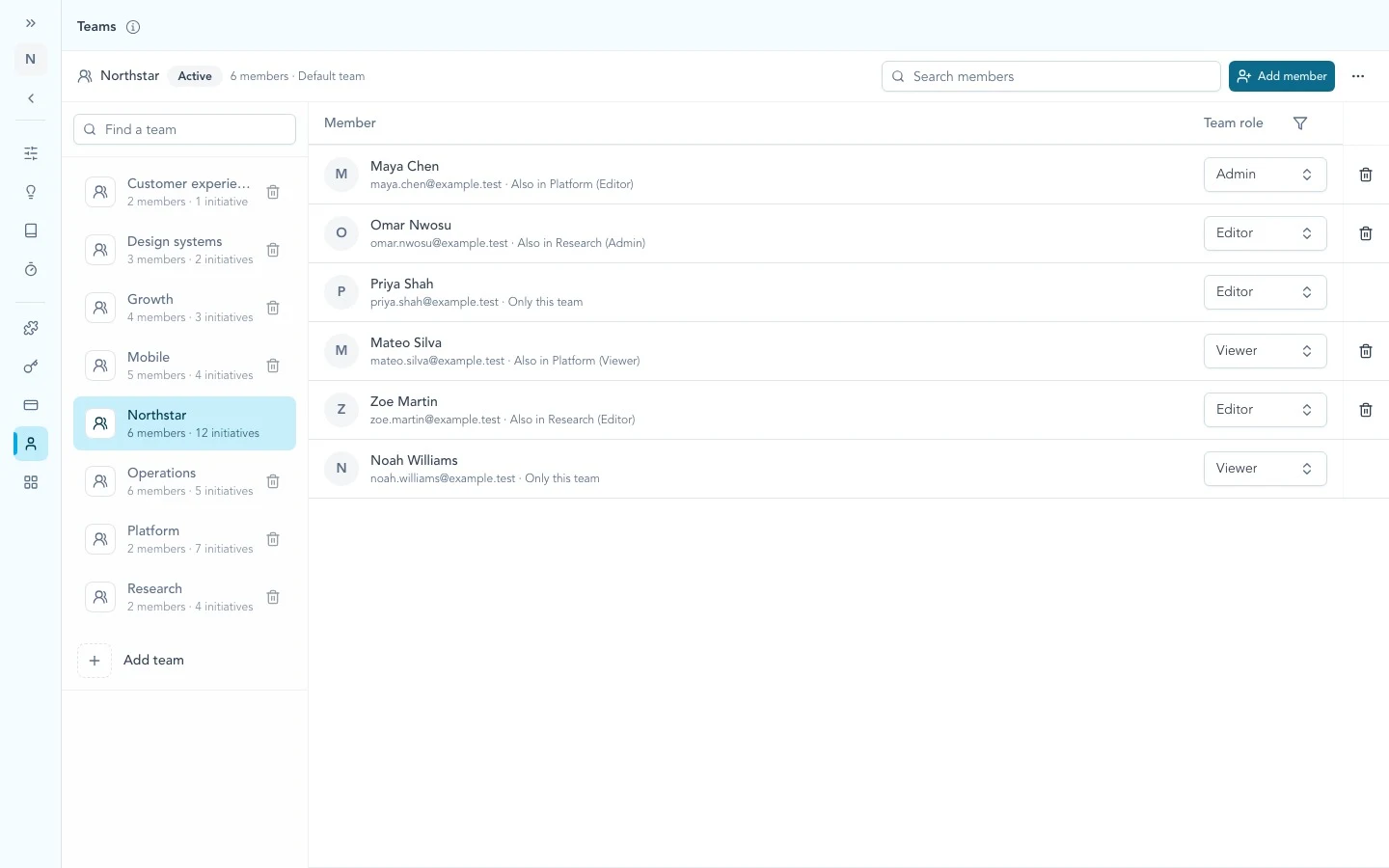
Select the operating team in the rail, then review its members, roles, and cross-team context before changing access.
Choose the active team
Use the team menu at the top of the main navigation to choose the team whose work you want to see. New team-owned work uses that team. Switching teams does not reassign existing work.
The menu lists teams you belong to. Workspace Owners and Admins can administer other teams in Settings without becoming members. All workspace initiatives, where available to them, is a separate privileged view.
Selecting a team in the Settings rail chooses it for administration only. Use the top-left menu to change your active team or Switch workspace.
See Team roles and work access for the permissions that apply to each role and record.
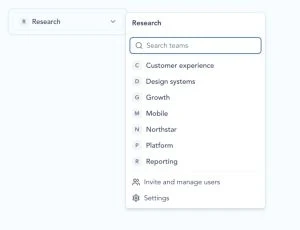
The active team stays in the navigation. Open the selector to search the teams you belong to or use the administration shortcuts available to your workspace role.
Troubleshooting
A team is missing from the selector
The selector shows teams you belong to. Ask a Workspace Owner or Admin to add you, or confirm that you are in the expected workspace.
Remove member is disabled
The person belongs only to this team. Add them to another team first; every workspace member must keep at least one team membership.
Continue from here
Related guides
Did this guide answer your question?
Your response helps us prioritize missing or unclear documentation.
Still stuck?
Send your question to Zentrik support. This guide will be included automatically.