Create a Bolt-ready prompt from an initiative, review it in Zentrik, and save the resulting build link with the source decision.
Zentrik turns initiative framing into a prompt for Bolt through Generate prototype. Review the prompt before opening Bolt.
Save the share or build URL back on the initiative when you want the team to reopen the experiment from the asset library.
How to run it
- From the initiative Assets library, start Create prototype → Generate prototype.
- Select Bolt in the catalog and let Zentrik finish the in-modal generation step.
- Review the prompt, then continue in Bolt from the modal action.
- Optional: use Save external prototype to pin the Bolt URL on the initiative.
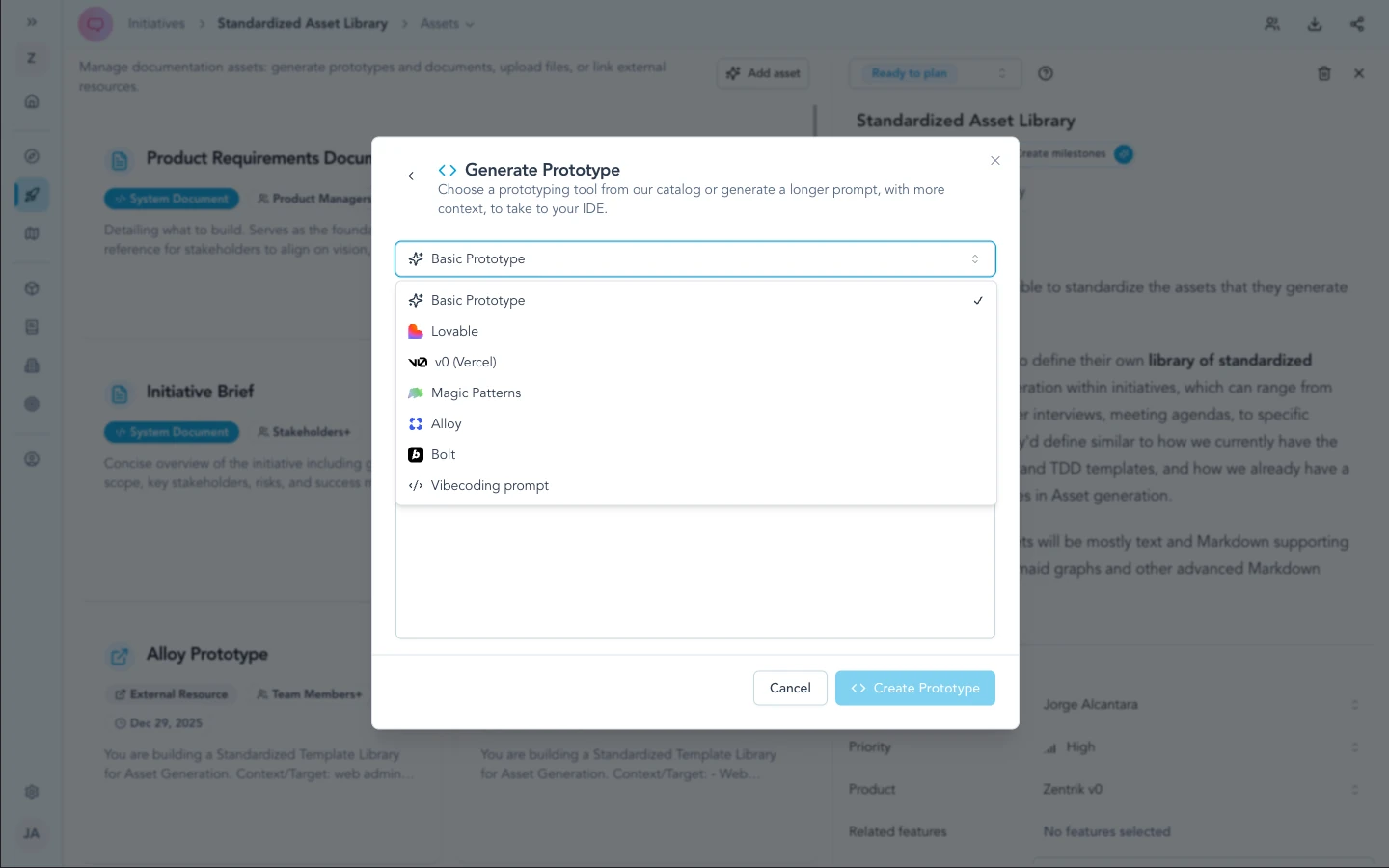
From Assets → Create prototype, pick Bolt. Zentrik generates the handoff prompt in-modal (same progress step as other catalog tools) before you continue in Bolt.
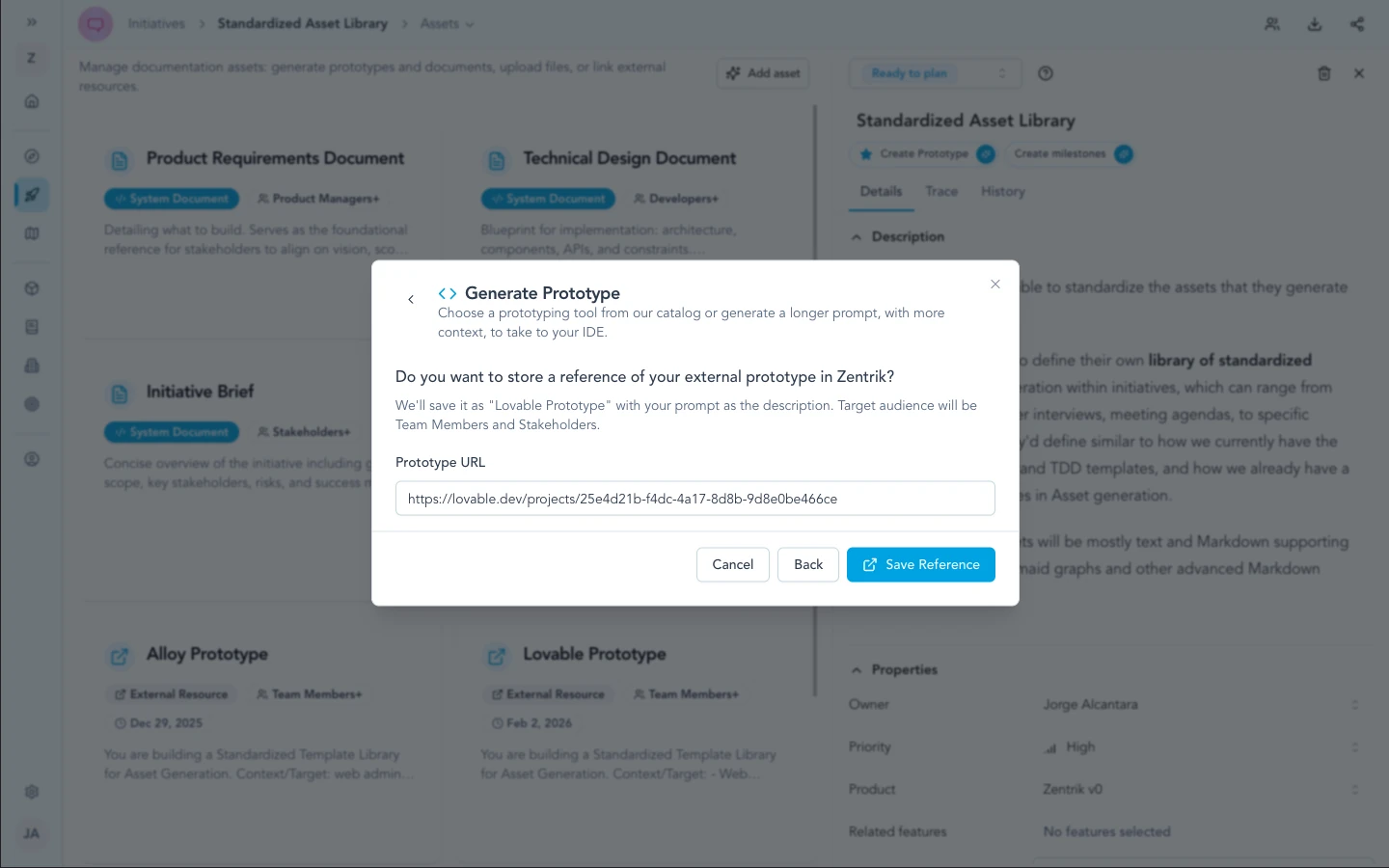
Save the Bolt build or share URL back on the initiative when you want a quick link from the asset library for the rest of the team.
Security & admin
No Bolt API key is stored in Zentrik for this handoff. Treat anything you paste into Bolt under your company’s AI and customer-data policies; Zentrik only auto-generates text from initiative context you already keep in-product.
Troubleshooting
These steps cover Zentrik (prompts, pop-ups, generation). If the problem is inside Lovable, Bolt, or another external tool, use their support first.
Bolt tab or session issues
Bolt runs in your browser. For crashes, logins, or limits inside Bolt, use Bolt’s support. Save anything you need from Bolt back to Zentrik before closing tabs.
Handoff from Zentrik fails
Regenerate the prompt from the initiative, allow pop-ups, then open Bolt again. Contact us if the failure is inside Zentrik, not Bolt.
Continue from here
Related guides
Did this guide answer your question?
Your response helps us prioritize missing or unclear documentation.
Still stuck?
Send your question to Zentrik support. This guide will be included automatically.