Review Fireflies transcripts and bring the relevant conversations into Discovery as traceable evidence.
An owner or admin connects Fireflies for the workspace. The connection supplies secure access to the meetings available to that Fireflies account; each saved import separately defines its meeting boundary, product context, and run policy.
Imported transcripts keep a link to the source meeting.
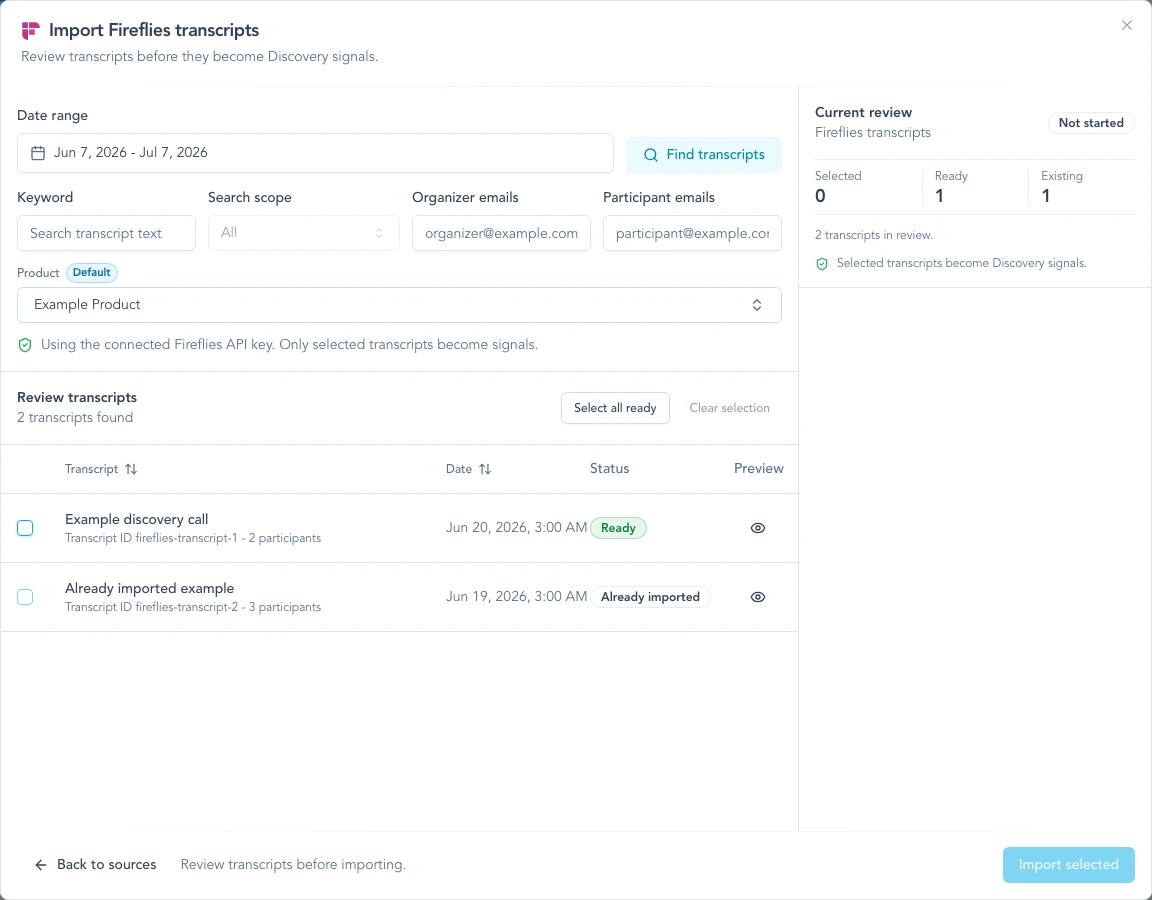
Review the source and selection while People organization stays on by default and missing Account creation remains an explicit choice.
Before you connect
Choose the Fireflies account carefully. Zentrik can access only the meetings available to that account.
Before connecting:
- Confirm the account can see the meetings your product team needs.
- Confirm your team may bring those conversations into Zentrik.
- Decide whether each saved import should use all accessible meetings or selected channels.
If the connected account cannot see a transcript in Fireflies, Zentrik cannot import it. Meeting privacy and channel visibility are separate in Fireflies: adding a meeting to a public channel does not make the transcript available to every teammate or API key.
Use a meeting privacy setting that includes teammates, such as Only Participants & Teammates or Only Teammates, when the connected API-key owner belongs to the same Fireflies workspace. Avoid Only Participants unless that account participated in the meeting.
Connect Fireflies
Create the integration in Settings → Integrations → Fireflies and paste a Fireflies API key that has access to the transcripts your product team should import.
API key
- Log in to Fireflies as the account that should own the Zentrik connection.
- Open Integrations, choose Fireflies API, and copy the API key.
- In Zentrik, open Settings → Integrations → Fireflies.
- Paste the API key and save.
- Test the connection or run a small transcript search.
Zentrik does not show the key again after save. If it may have been exposed, rotate it in Fireflies and update the connection in Zentrik.
Fireflies reference: Authorization and how to get your API key.
Channel access
In Settings → Integrations → Fireflies → Channel access, choose the channels people can use across Zentrik’s transcript tools, then click Save channel access. Owners and admins can change this setting. Select All meetings accessible to this connection to allow every meeting the connected account can read, including meetings without a channel. Selecting no channels makes meetings unavailable to import.
Channel access and automatic imports have separate selections. To use internal huddles without importing them as customer evidence:
- Allow both Customer Interviews and Morning Huddles in Channel access.
- In each automatic Signal import, choose Selected channels and select only Customer Interviews.
- In Huddle, use Add transcript → Fireflies to select an internal meeting. This attaches a transcript reference to the Huddle without creating a Signal.
Allowing a channel does not add it to an import that uses Selected channels. An import using All accessible meetings covers every meeting allowed by the connection, so its coverage expands when channel access expands. A meeting in both an internal and a customer channel can still match the customer import.
Existing channel restrictions remain in effect until an admin saves Channel access. Removing a channel blocks future selection and imports through that connection; it does not delete previously imported Signals or Huddle summaries.
How to use it
Open Discovery, click New, choose Bring in data, and select Fireflies. Search the meetings allowed by the connection’s Channel access setting, preview the relevant transcripts, and choose what to import.
Import transcripts
- Choose a date range.
- Optionally choose channels to narrow this one-time review. This does not change any saved import.
- Optionally filter by keyword, organizer email, or participant email.
- Choose whether to save reliably external attendees as People and, separately, whether a professional company domain may create a missing Account.
- Click Find transcripts.
- Preview the meetings you need. Already-imported and still-processing transcripts are marked.
- Select the ready transcripts to import.
- Click Import N transcripts.
Zentrik uses the transcript as the primary evidence and keeps the Fireflies summary as supporting context.
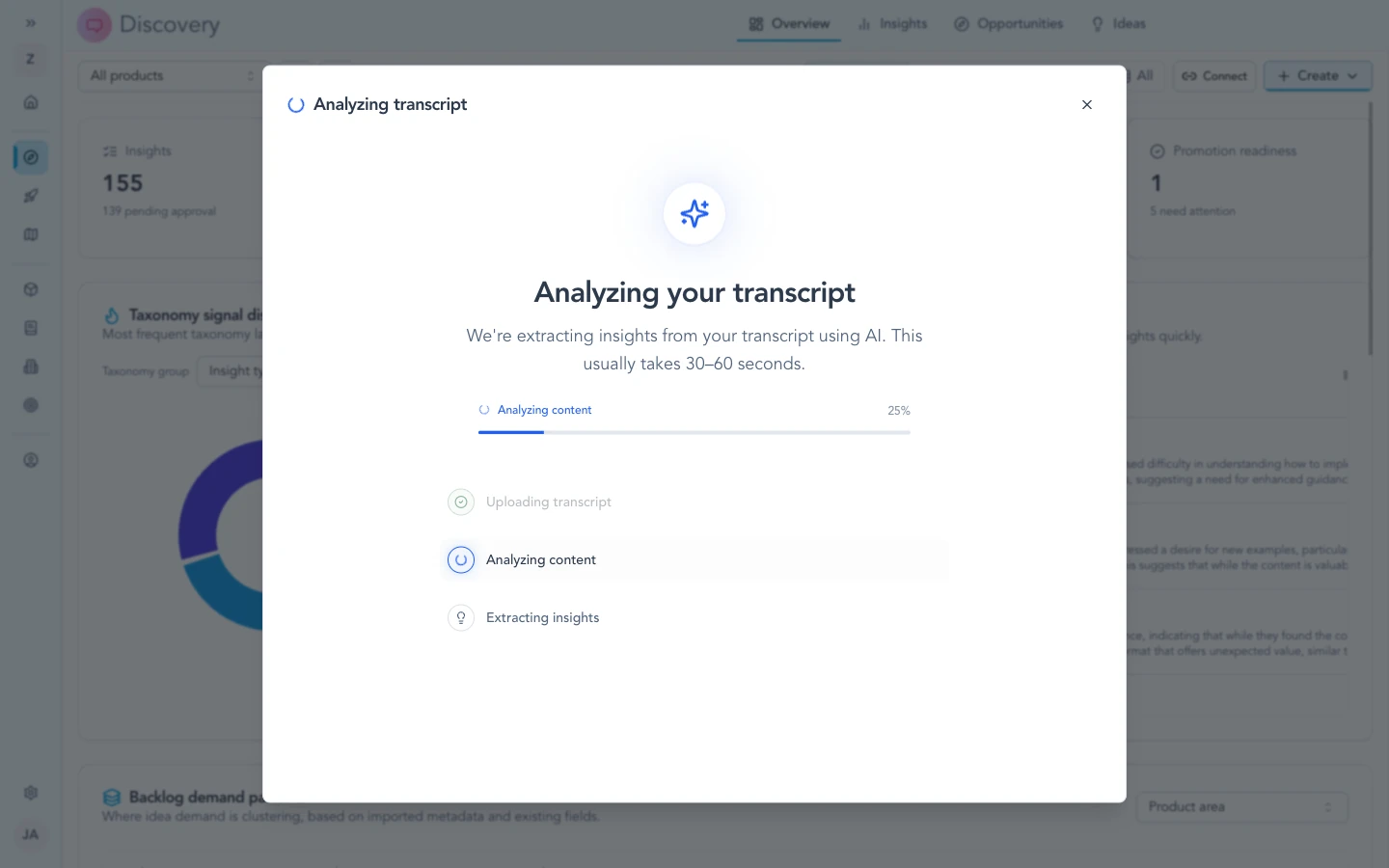
After import, Fireflies transcripts follow the same signal -> insight path as other transcript sources.
Live arrival
Live arrival brings each meeting into Discovery as soon as Fireflies finishes its transcript, instead of waiting for the next scheduled run. Any schedule on the import stays on as the catch-up sweep.
An owner or admin turns it on from Settings → Integrations → Fireflies:
- Turn on Live arrival. Zentrik shows a webhook URL and a signing secret.
- In Fireflies, open Settings → Developer settings, paste both values, and save.
- Every saved import on the connection now arrives live. Switch off Arrive live in a saved import's run policy to keep that one on schedule only.
Each meeting is checked exactly as a scheduled run would check it: the same channel scope, product routing, and attendee policy. A meeting outside the import's channels, or one the connected account cannot see, is skipped and never imported. Live imports appear in the run history as Arrived live.
Fireflies signs every delivery with the secret. If it stops matching the one in Zentrik, the connection page reports rejected deliveries; paste the current secret again, or create a new one from the same page.
Which meetings arrive live
Fireflies sends the event only for meetings owned by the Fireflies user who registered the webhook. To cover several recorders, each recorder must paste the same URL and secret into their own Fireflies Developer settings. A Super Admin's registration alone does not cover meetings owned by other users.
The saved import's schedule remains the catch-up path for meetings that live delivery does not reach.
For workspace admins
- All accessible meetings: the saved import checks every completed meeting allowed by Channel access and visible to the connected account within its rolling lookback.
- Selected channels: the saved import checks only the chosen channels and can route each channel to a product.
- The connection owns credentials and Channel access. Each saved import separately owns its channel selection, product routing, schedule, and run history.
- One-time review remains available for selecting individual meetings without changing a saved import.
- A meeting must also be visible to the connected Fireflies account. A public channel does not override the meeting's own privacy setting.
- Saved imports can set a Recent lookback between 1 and 30 days; new definitions default to 30 days. Each run rechecks meetings whose meeting date falls within that rolling window, which can catch an older meeting after it is moved into a selected channel.
- The lookback uses the meeting date because Fireflies does not provide the date when a meeting was added to a channel. A meeting older than the configured lookback is not discovered automatically; use a one-time import with a wider date range.
- Wider windows require more Fireflies API work. If a run reports that its safe transcript limit was exceeded, reduce the lookback or narrow the selected channels.
- Fireflies workspace users and same-company attendees are treated as internal. A Fireflies user profile by itself does not make someone internal. Without a reliable workspace boundary, Zentrik can reuse one exact existing Person but does not create one.
- When attendee organization is enabled, reliably external attendees are matched or created as People. Account creation remains a separate opt-in; ambiguous matches stay unassigned instead of guessing. Generated insights inherit the Signal's Account links.
Troubleshooting
Check credentials and permissions on both sides first. If you have verified everything and it still fails, contact us with your workspace name and what you tried.
Credentials not working
Generate a new API key in Fireflies, paste it into Settings → Integrations → Fireflies, and save again. Make sure the key belongs to the account intended for the shared connection.
Transcript missing from the review list
First check Channel access on the Fireflies connection. For a saved import, also check whether it uses all accessible meetings or selected channels. Then confirm the connected Fireflies account can open the meeting transcript. If the meeting uses Only Participants, change it to a privacy setting that includes teammates or explicitly grant access to the API-key owner. Being in a public channel alone does not grant transcript access.
After confirming access, widen the date range or remove optional search filters.
For a saved import, also compare the meeting date with its Recent lookback. Moving an old meeting into a channel does not change its meeting date. Increase the lookback up to 30 days, or use a one-time import for older meetings.
Transcript cannot be imported
Live or still-processing meetings cannot be imported until Fireflies finishes the transcript. If access is denied, confirm that the meeting is within the saved import scope and shared with the connected Fireflies account.
Meetings are not arriving live
Check the Live arrival status on the connection page. Waiting for first meeting means the URL and secret are not saved in Fireflies for the account that owns the meeting. A rejected-delivery notice means the secret does not match; paste the current one again. If the status is Receiving but a meeting is missing, the saved import's run history shows whether it was outside the import's channels or not visible to the connected account.
Still failing
Contact us with your workspace name, the Fireflies transcript title or date, and the filter values you tried. Do not send API keys, signing secrets, or full transcript text in the support request.
Continue from here
Related guides
Did this guide answer your question?
Your response helps us prioritize missing or unclear documentation.
Still stuck?
Send your question to Zentrik support. This guide will be included automatically.